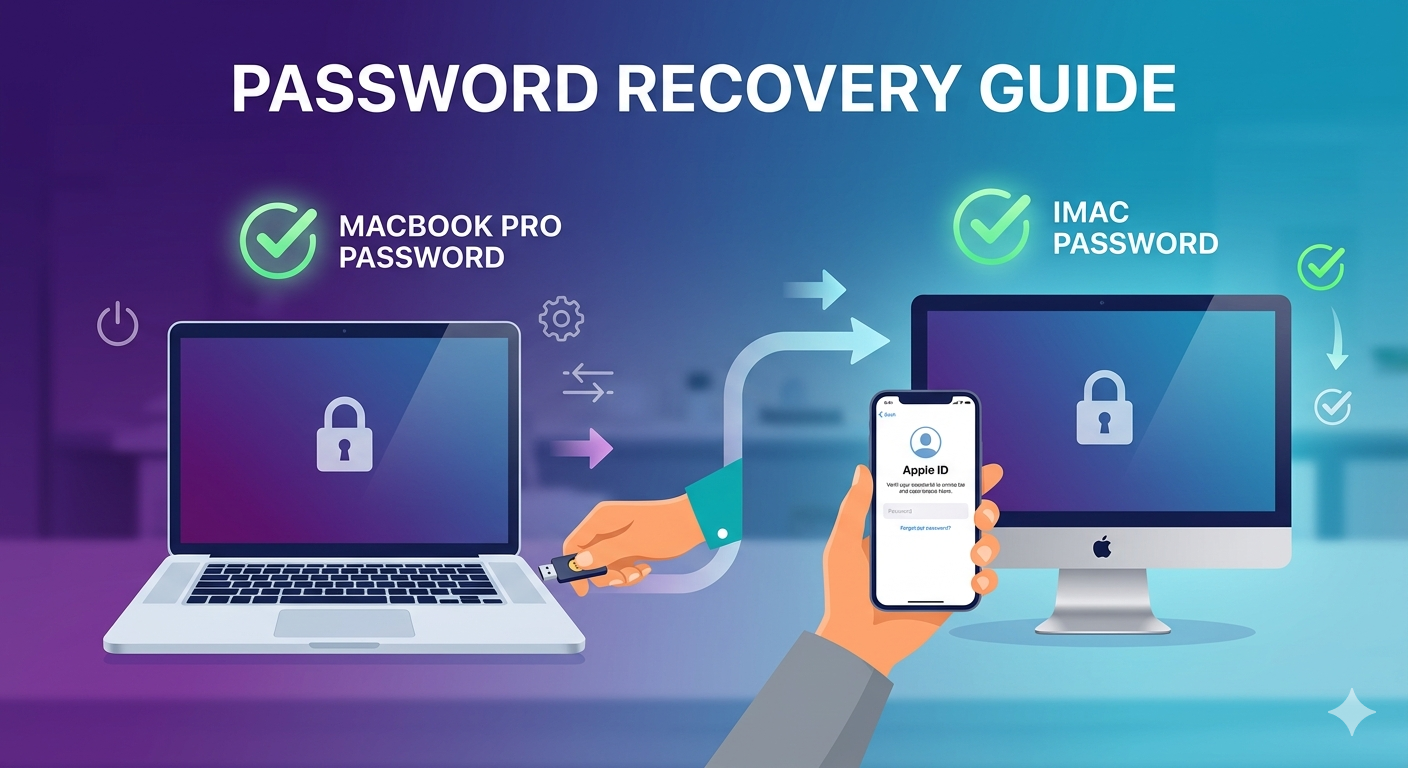
Well, if you have ever been a victim of forgetting your Mac password, then you must know how frustrating this can be. Whether you want to reset MacBook Pro Password or you wish to recover iMac password, then do not worry because in this article, we will be guiding you about both these important things with reliable ways.
Need to Reset Your Mac Password
We all know how important our Mac login password is for accessing important files and apps. In case you forget your password or enter it incorrectly numerous times, the system can lock you out. This is not a matter of worry because Apple provides many built-in ways to recover a password and gain access to your MacBook without losing any of your data.
How to Reset MacBook Pro Password
1. Use Password Hint or Reset Option
Entering an incorrect password multiple times on your MacBook will make the ‘Hint or Reset’ option appear on your screen. A question mark icon will pop up in the question field. After this, click on the ‘Reset it using your Apple ID’ option if that is available. Then you just need to follow the instructions appearing on the screen to create a new password. This is the most convenient way to reset MacBook Pro Password.
2. Reset using Apple ID
This option works if your account is linked to your Apple ID. For this, you need to enter an incorrect password at least 3 times. Then click on the ‘Reset’ option. Following this, log in with your Apple ID. Create a new password. This method is a very safe and legal way to restore access.
3. Use macOS Recovery Mode
In case the above given ways do not work for you, you can use Recovery Mode. Begin by restarting your MacBook. Press Command + R or Power Button (Apple Silicon). Select Utilities > Terminal and type ResetPassword. After this, you can create a new password following the on-screen instructions. This is a very powerful way to reset MacBook Pro password.
How to Recover an iMac Password Easily
1. Use Login Window Reset Options
After entering the wrong password multiple times, a reset option will appear on your login screen. Click on it. Then reset it via Apple ID or recovery key. The last step is to follow the on- screen instructions to reset the password.
2. Recover Using Recovery Key
This option works only when FileVault Encryption is enabled. For this, you need to enter the recovery key when asked. Unlock using the recovery key and reset the password. This option is the nest for secure systems.
3. Recover via macOS Recovery
Similar to a MacBook, Boot into the recovery mode. Go to the password reset option. Then generate a new password. This is undoubtedly a very convenient way to Recover iMac Password without losing important data.
Tips to Avoid Password Issues in the Future
All the above methods will help you recover and reset your password, but to avoid such password issues, you need to follow certain tips. Make sure to always link your Apple ID to your Mac. Always set a memorable password hint. Make sure to store all your passwords in a password manager.
Conclusion
Do not worry if you want to reset MacBook Pro password or recover iMac Password, Apple always has your back. It provides several ways to do this, like Recovery mode, Apple ID access, etc.
Read more here: https://datarecovee.com/how-to-reset-macbook-password/